
Appearance
The chat
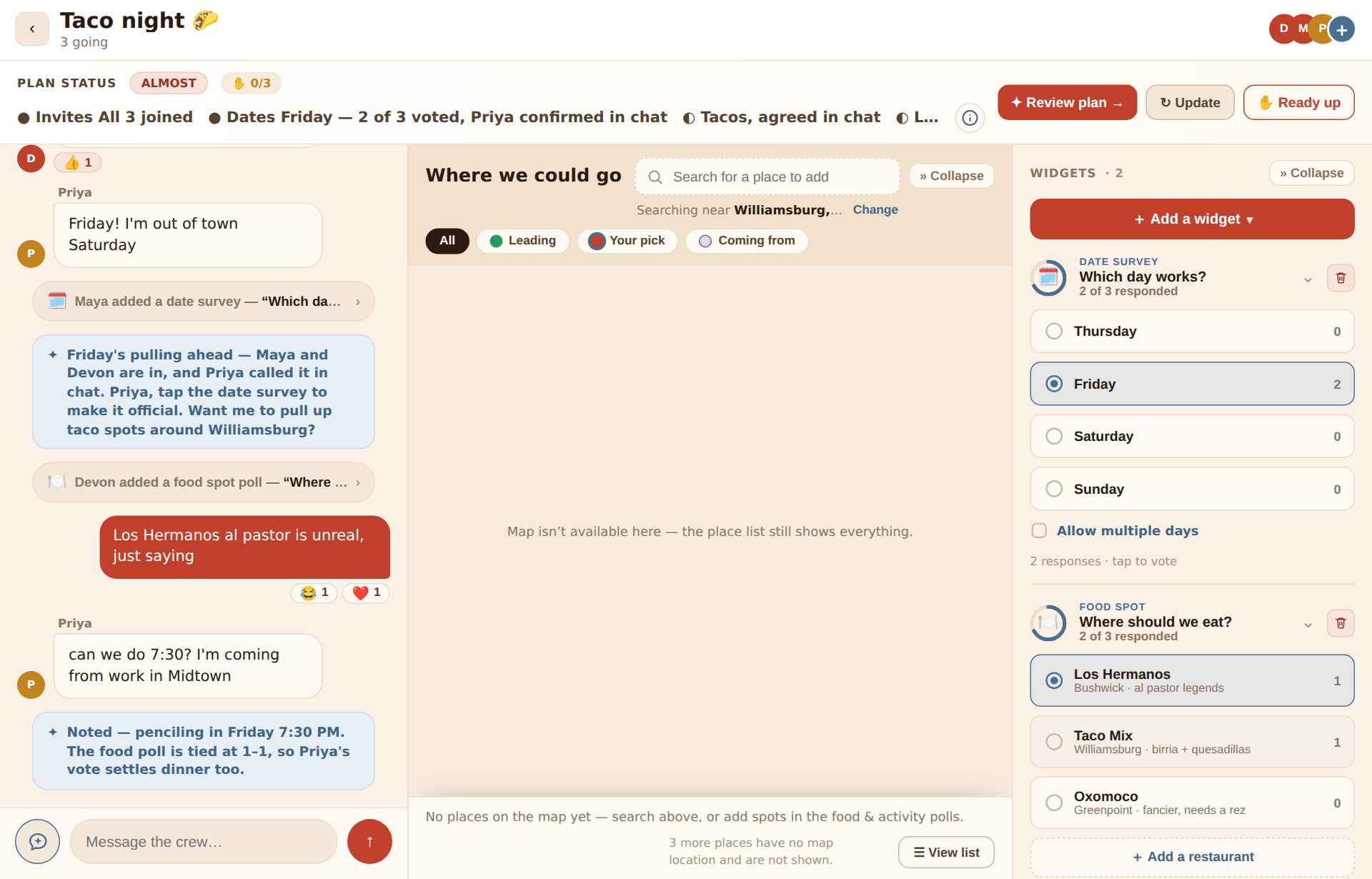
The chat is where a hangout happens. It's a normal group chat with three extras: a plan status strip that tells you where the plan stands, a rail of widgets beside the messages, and Nova, the assistant, reading along.
The layout
On a phone, top to bottom:
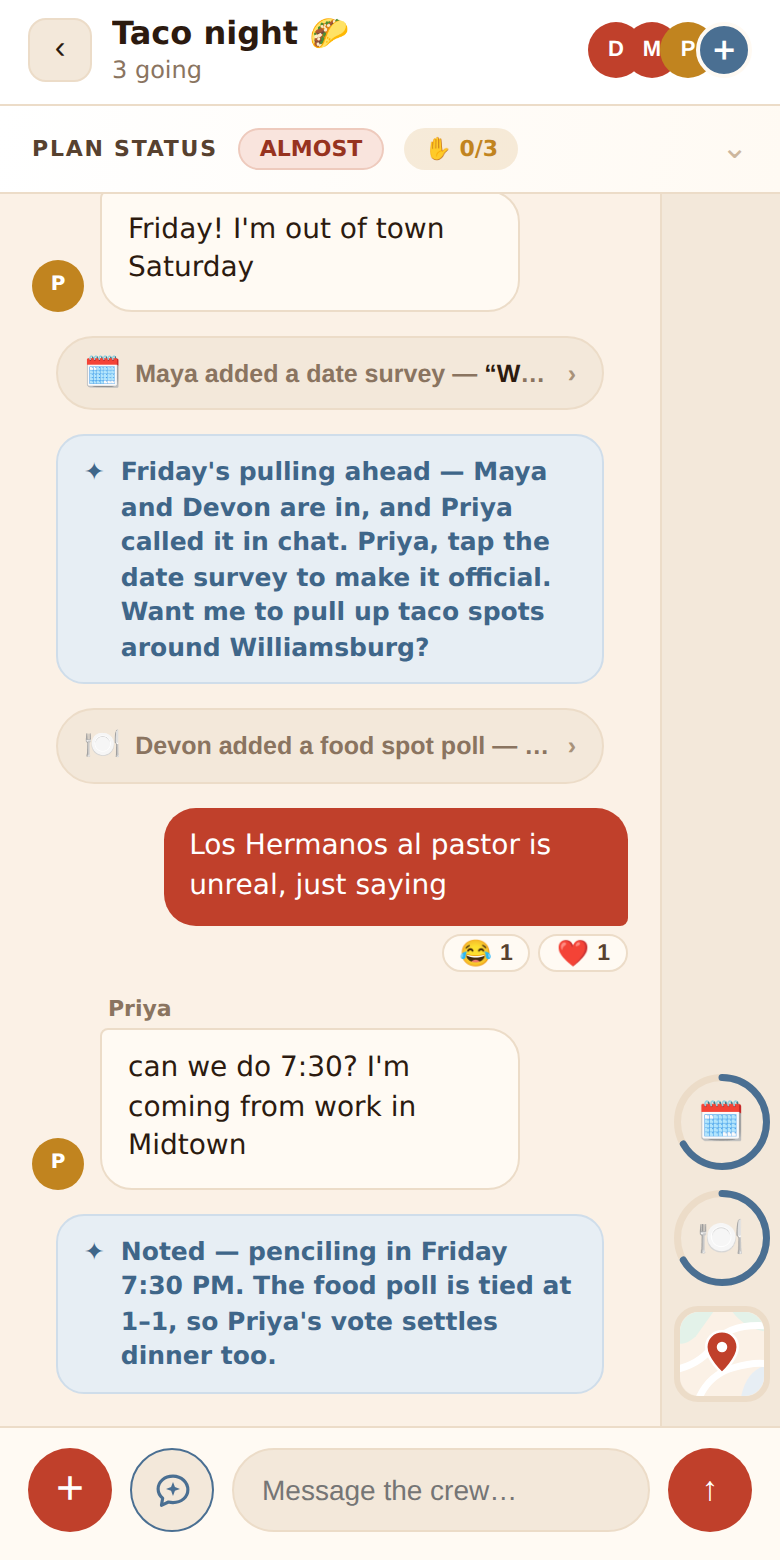
- Header — a ‹ back button, the hangout's title with N going under it, and a cluster of member avatars with a +. Tap the cluster to open the invite screen.
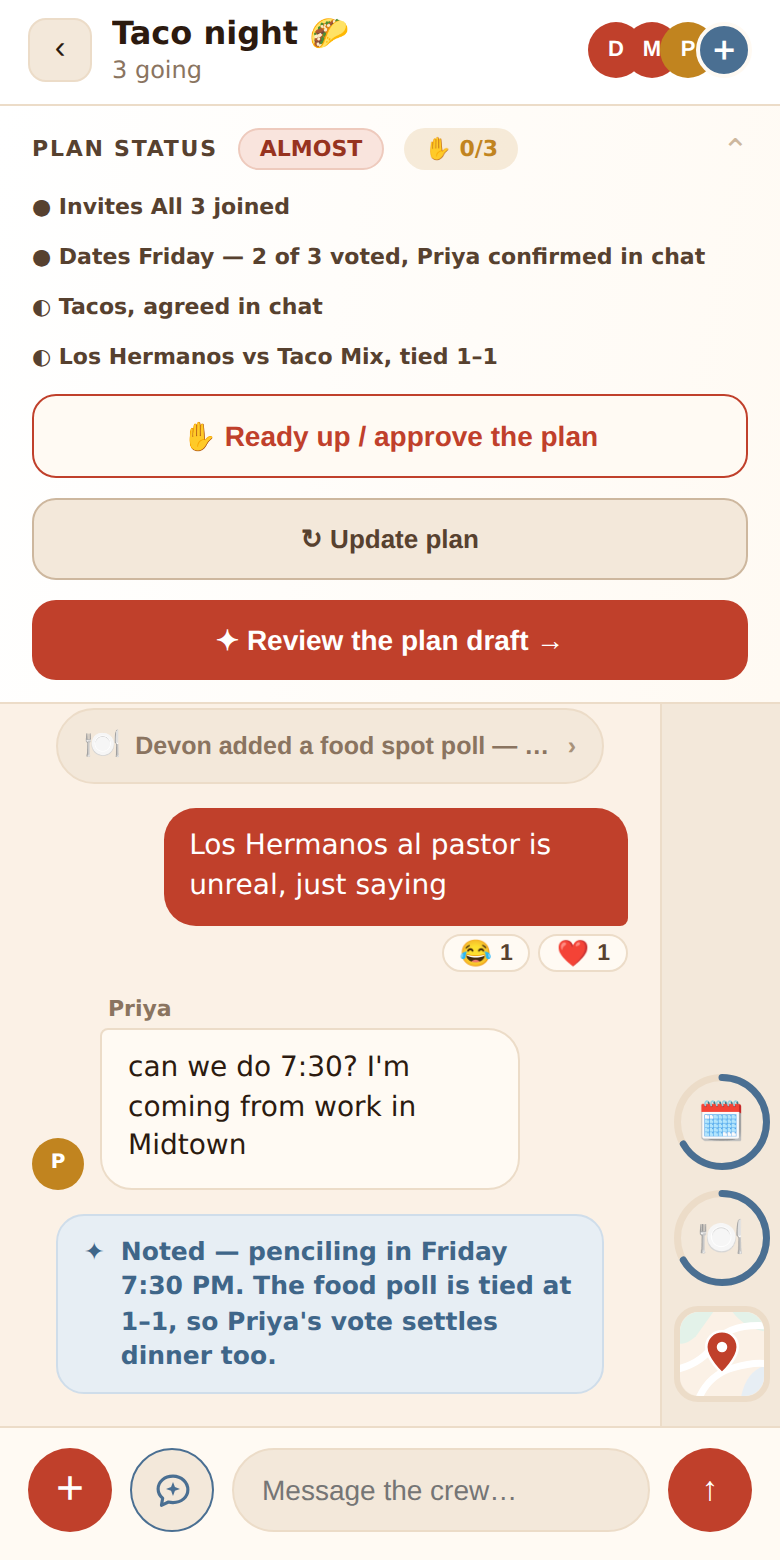
- Plan status — a strip you can tap to expand. See Plan status.
- The thread, with the widget rail down the right edge once there are widgets. See Widgets.
- The composer — + to add a widget, ✦ to message Nova, the text box, and ↑ to send.
On a tablet or desktop (roughly 820px and wider) the screen splits into panes: the thread on the left, a map pane in the middle, and either a compact widget rail or a full widgets column on the right. The plan status becomes a permanent toolbar across the top with its actions inline. Rotating a tablet swaps layouts live without losing your draft message.
Sending a message
Type in Message the crew… and press Enter or tap ↑. Enter always sends (there's no multi-line mode). Messages are capped at 4,000 characters.
If a message doesn't go through, it's put back in the box and a notice explains why — usually a connection blip, or you're no longer a member of the hangout.
The thread scrolls to new messages only when you're already near the bottom, so reading back isn't interrupted. A ↓ button appears when you've scrolled up; tap it to jump to the latest.
What messages look like
- Yours — terracotta bubbles on the right.
- Other people's — light bubbles on the left with their avatar and name.
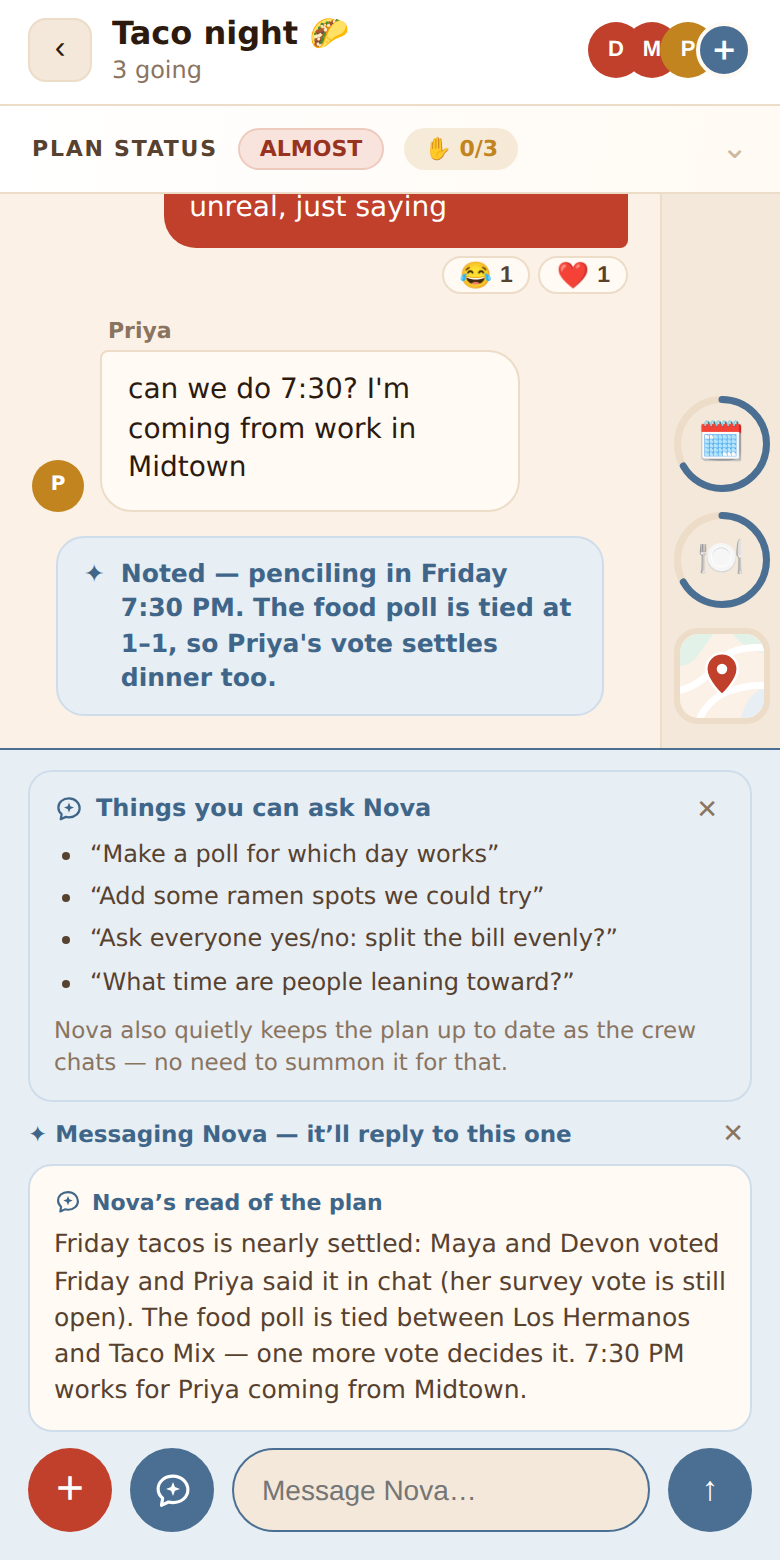
- Messages to Nova — tinted blue, whether you used the ✦ button or just wrote "Nova" in the message, so everyone can see who a message was aimed at.
- Nova's replies — a centered blue pill with a ✦. While it's writing you'll see ✦ Nova is thinking….
- System notes — small grey lines for things like 👋 Maya joined, and a green card for big moments like the plan being locked.
- Widget notices — a slim pill where a widget was added: 🗓️ Maya added a date survey — "Which day works?". Tap it to open the widget.
- Invite links pasted from another Planet4 hangout unfurl into an invite card with an Open invite → button.
- Sponsored — once in a while (every 25 messages or so, and never once the plan is confirmed) a clearly labeled Sponsored · Planet4 Picks card appears with a plain search link. It's chosen on your device, never saved, and you can ✕ it.
Reactions
Long-press a bubble on a phone, or right-click on a desktop, to pick one of 👍 👎 😂 ❤️ 🎉 😮. One reaction per person per message: choosing a different emoji replaces yours, choosing the same one again removes it. Reactions show as small chips under the bubble; hover to see who reacted, tap a chip to add or remove your own.
Talking to Nova
Nova stays quiet unless you address it. Two ways:
- Write its name — any message with the word "Nova" in it, e.g. Nova, what's the plan?
- Tap ✦ in the composer. The bar turns blue and reads ✦ Messaging Nova — it'll reply to this one. Send, and the mode switches itself off again.
Nova replies once, in a sentence or two, and goes back to listening.
 The full story — what it reads, what it changes, when it stays silent — is in Nova, the assistant.
Plan status
The Plan status strip (a tappable banner on phones, a toolbar on wide screens) is Nova's live read of where things stand.
The status pill:
| Pill | Meaning |
|---|---|
| DECIDING | Key things are still open. |
| ALMOST | Most of the plan has settled. |
| READY (green) | Nova thinks the plan is complete enough to lock. |
| ✦ updating… | Nova is re-reading the chat right now. |
The ready tally — ✋ 3/5 — counts how many members have tapped Ready up. It turns green when everyone has. This is the crew's own sign-off and is independent of Nova's READY pill: one is the assistant's opinion, the other is the humans'.
Signals — short chips like Invites 6, Dates Sat–Sun, bowling, Williamsburg summarising what Nova has picked up so far.
Expand the banner (or use the toolbar) for the actions:
- ✋ Ready up / approve the plan → becomes ✓ You're in — tap to undo. Anyone can do this.
- ↻ Update plan — organizer only. Makes Nova re-read the chat immediately.
- ✦ Review the plan draft → — opens the itinerary. Anyone can look. See The plan and locking it in.
On phones, tapping ✦ in the composer also shows Nova's read of the plan — its one-line summary — above the text box.
The widget rail
Each widget in the chat is a round icon button on the rail, wearing a progress ring that fills as the crew responds — blue while collecting, green when everyone's in. A terracotta dot means you still owe an answer; a green ✓ means everyone has answered. Tap a button to open the widget in a sheet.
On phones the rail also ends in a map button badged with the number of places that can be shown on the map. On wide screens the rail can expand into a full column where every widget is open and live. See Widgets and Venues and the map.
Notifications nudge
After your first message in a chat on a phone, a card asks Want to get notified when your friends respond? On a mobile browser it walks you through adding Planet4 to your Home Screen; in the installed app or on a desktop it offers Turn them on. ✕ hides it for good on that device. Details in Notifications.
What's organizer-only in the chat
Everything above is open to every member — including changing the venue search area and adding options to any poll. The organizer additionally gets ↻ Update plan, a shortcut to ✦ Open the draft itinerary in the add-widget menu, and the ability to delete any widget.