
Appearance
Friends & in-app invites
Add the people you hang out with as friends and you can invite them to future hangouts with one tap — no link to share. Friends live under Settings → Friends.
Keep them safe
Friends are tied to your account. On a device-only account they'd be lost with the browser, so link Google or an email under Settings → You → Account first. The Friends tab reminds you if you haven't.
Adding a friend
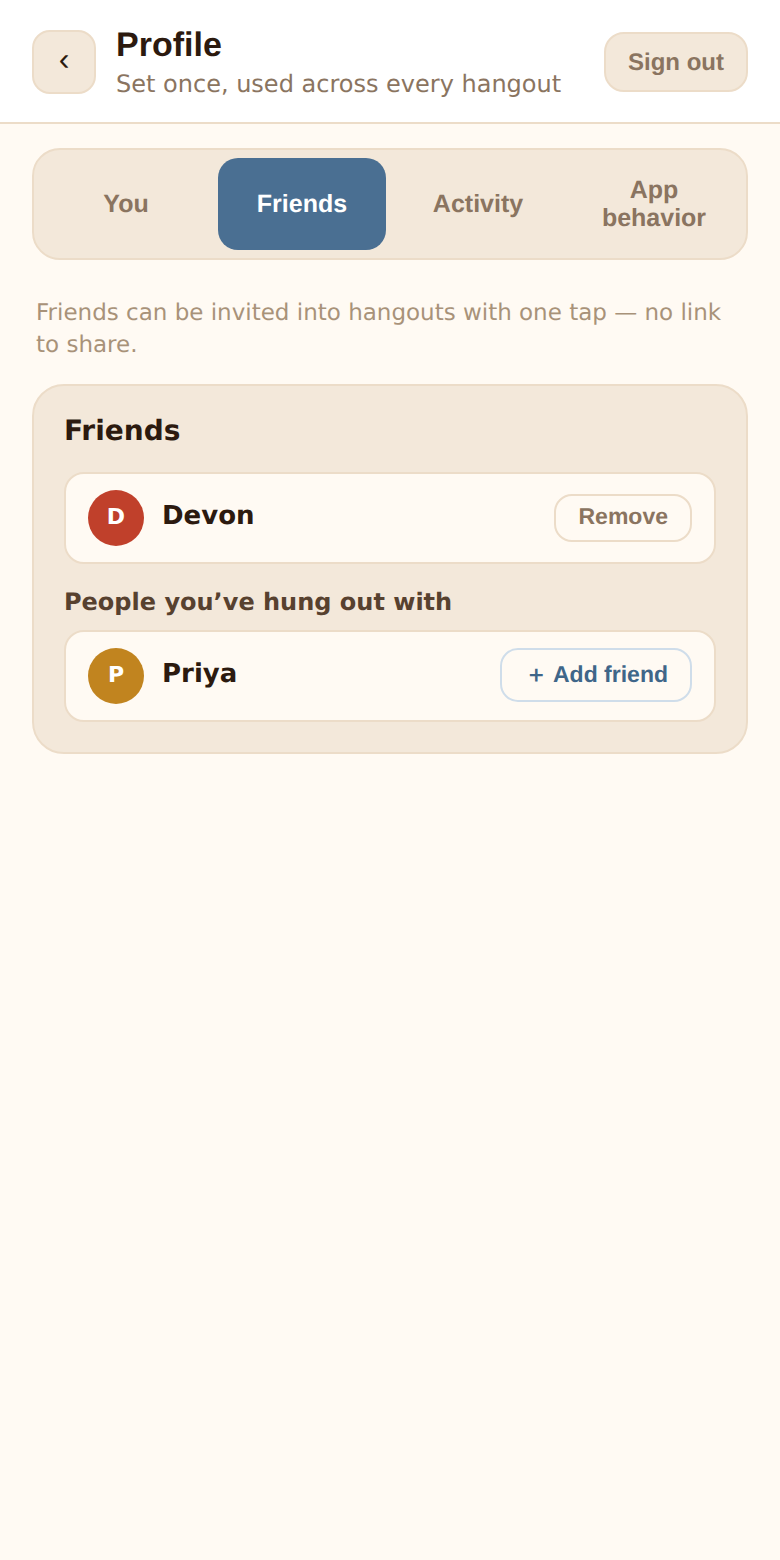
The Friends card lists, in sections that appear as needed:
- Your friends — with a Remove button (confirm with Yes). Removal is quiet; the other person isn't told.
- Wants to be friends — incoming requests, with Accept or ✕ to decline. Declining is silent.
- Requested — requests you've sent, with Cancel.
- People you've hung out with — everyone you've shared a hangout with who isn't already a friend or pending. Tap + Add friend to send a request. If they'd already requested you, you become friends immediately.
Requests and acceptances arrive as push notifications (Maya wants to be friends, Maya accepted your friend request 🎉) when notifications are on, and requests also show in the For you section of the home screen.
Inviting friends to a hangout
On a hangout's Invite the crew screen (tap the avatar cluster at the top of the chat), an Invite friends list shows your friends who aren't in the hangout yet. Tap Invite — it becomes ✉ Invited. Any member can invite their own friends, not just the organizer.
The friend gets:
- A For you row on their home screen — 💌 the hangout's title, (you) invited you — with Accept and ✕.
- A push notification, Maya invited you to hang out — tap to respond, if they have notifications on.
Accepting drops them straight into the chat. Declining is quiet.
Where invites show up
The For you section sits at the top of the home screen and only appears when there's something to answer: hangout invites and friend requests. It disappears row by row as you act on them.