
Appearance
Getting started
Everything in Planet4 starts at planet4.us. Nothing to download, nothing to sign up for.
Your first visit
- Open planet4.us (or tap an invite link a friend sent you).
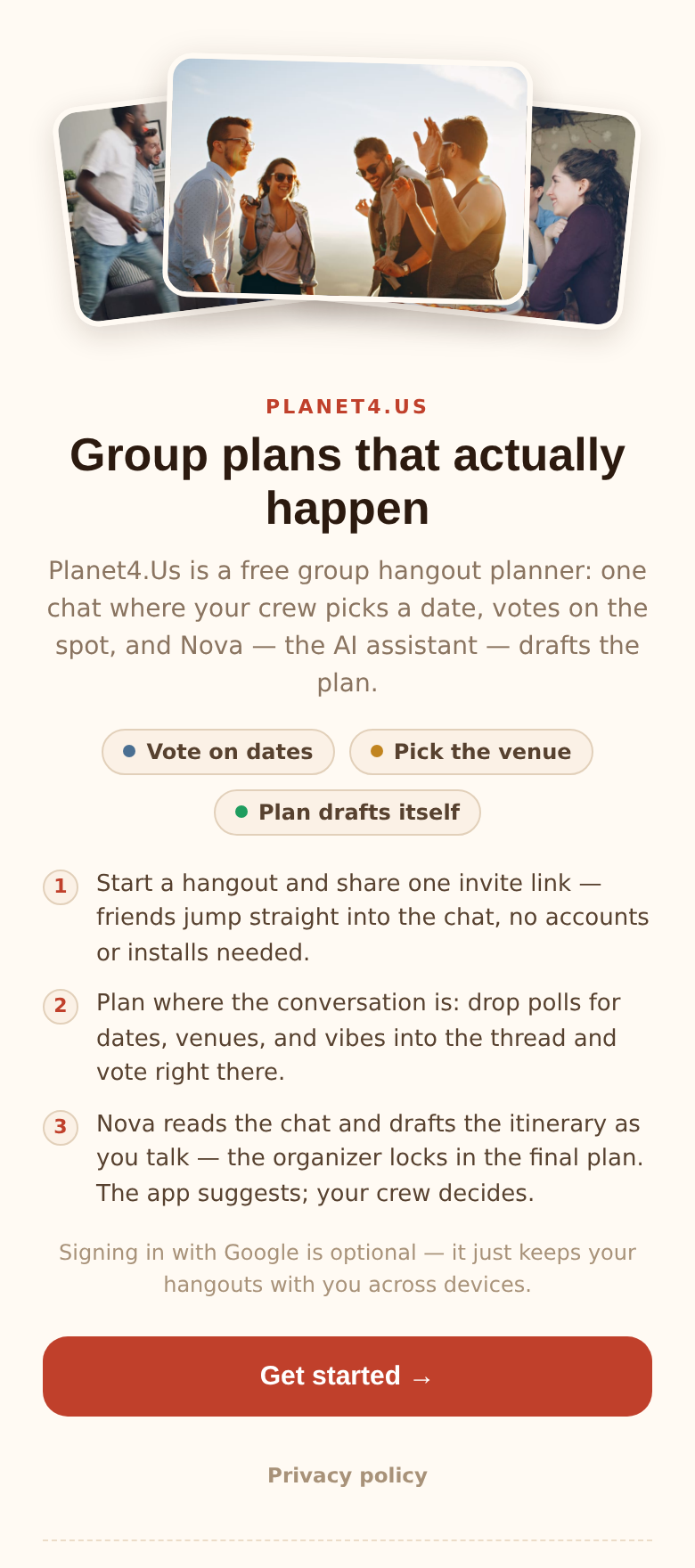
- You'll see the landing page: Group plans that actually happen. Tap Get started →.
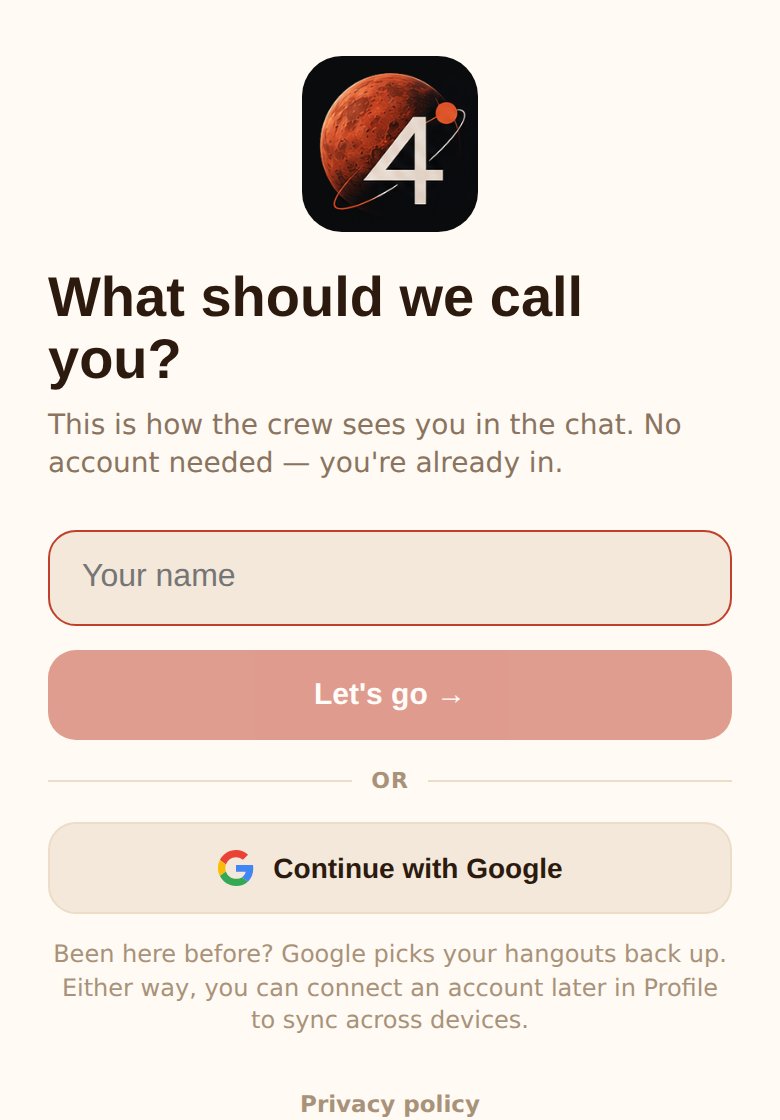
- The app asks What should we call you? Type the name your crew should see and tap Let's go →. That's it — you're in.
You didn't create a password or give an email, and you don't need to. Planet4 gives you an account that lives in this browser and remembers you every time you come back on this device.
Names
Your name can be up to 40 characters and you can change it any time under Settings → You. The name Nova is reserved for the assistant; if you try to use it, you'll show up as "Guest".
Signing in with Google (optional)
On the name screen, and later under Settings → Account, there's a Continue with Google button. It's optional. What it does:
- Keeps your hangouts with you. A device-only account disappears if you clear your browser data or switch phones. Linking Google (or an email — see below) makes it durable and lets you sign in anywhere.
- Picks your account back up on a new device. Tap Continue with Google on a fresh phone and you land in your existing hangouts, with your name and photo. If the Google account already belongs to a Planet4 account, you switch to it; otherwise your current device-only account is upgraded in place, so nothing is lost.
- Uses your Google photo as your avatar in chats.
Some features need a durable account: the paid Nova memory upgrade, the email digest, and keeping your friends list safe. The app tells you when that's the case.
Linking an email instead
If you'd rather not use Google, go to Settings → You → Account, type your email and tap Email me a link to sync. Open the link on the same device and your account is linked. If you open the link somewhere else, the app asks you to confirm the email address you requested it with before finishing.
The home screen
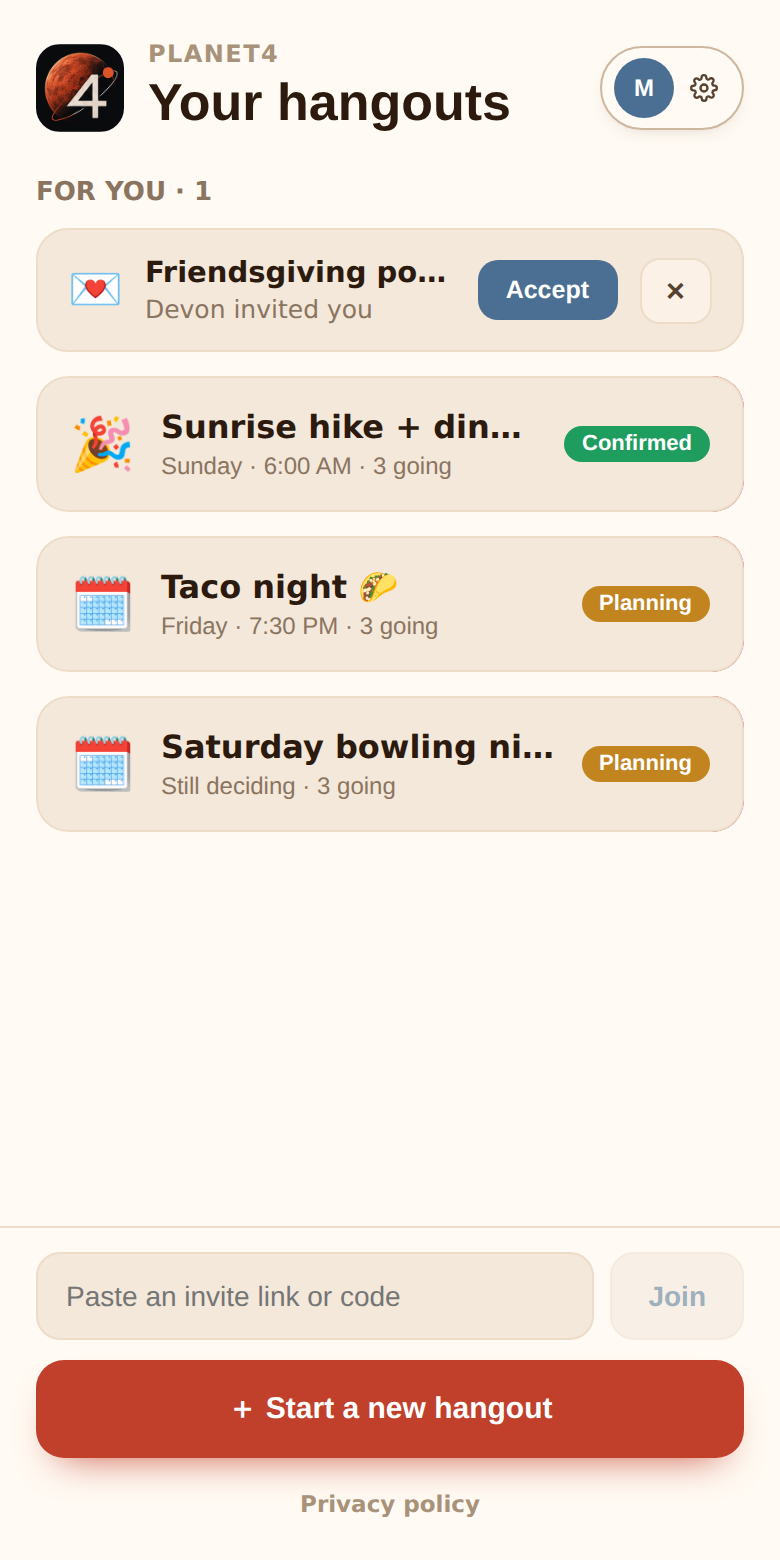
After the name step you're on Your hangouts. From top to bottom:
- Settings (top right) — your profile, account, friends, notifications. See Profile & settings.
- For you — only appears when something is waiting: hangout invites from friends and friend requests. Each has Accept and ✕.
- A one-time tip on new accounts suggesting you set your cuisines, interests and home area so venue suggestions fit you. Set my preferences opens the right settings tab; Not now hides it for good.
- Your hangouts, most recently active first, each with a status pill — Planning, Confirmed or Archived — and a line showing the date, Nova's current leaning, or Still deciding, plus how many people are going. Tap one to open its chat (or its confirmed plan, once locked).
- Paste an invite link or code with a Join button — the way in if someone sent you a link in another app.
- + Start a new hangout.
- A Privacy policy link.
If you have no hangouts yet you'll see No hangouts yet. Start one below 👇.
Adding Planet4 to your Home Screen
Planet4 is an installable web app. Installing it gives you an icon, a full-screen window, and — importantly on iPhone and iPad — the ability to receive push notifications.
iPhone / iPad (Safari): tap Share in the toolbar → Add to Home Screen → open Planet4 from the Home Screen.
Android (Chrome): tap the ⋮ menu → Install app (or Add to Home screen) → open Planet4 from the Home Screen.
The app also offers these steps itself the first time you send a message in a chat on a phone. See Notifications.
Where to next
- Starting something? Start a hangout.
- Got a link? Join a hangout.
- Already in one? The chat.