
Appearance
Widgets: polls, dates & times
Widgets are the decision tools you drop into the chat. Each one lives where the conversation is, collects answers live, and feeds Nova's draft plan. This page covers the general ones; venue votes and the map have their own page.
Adding a widget
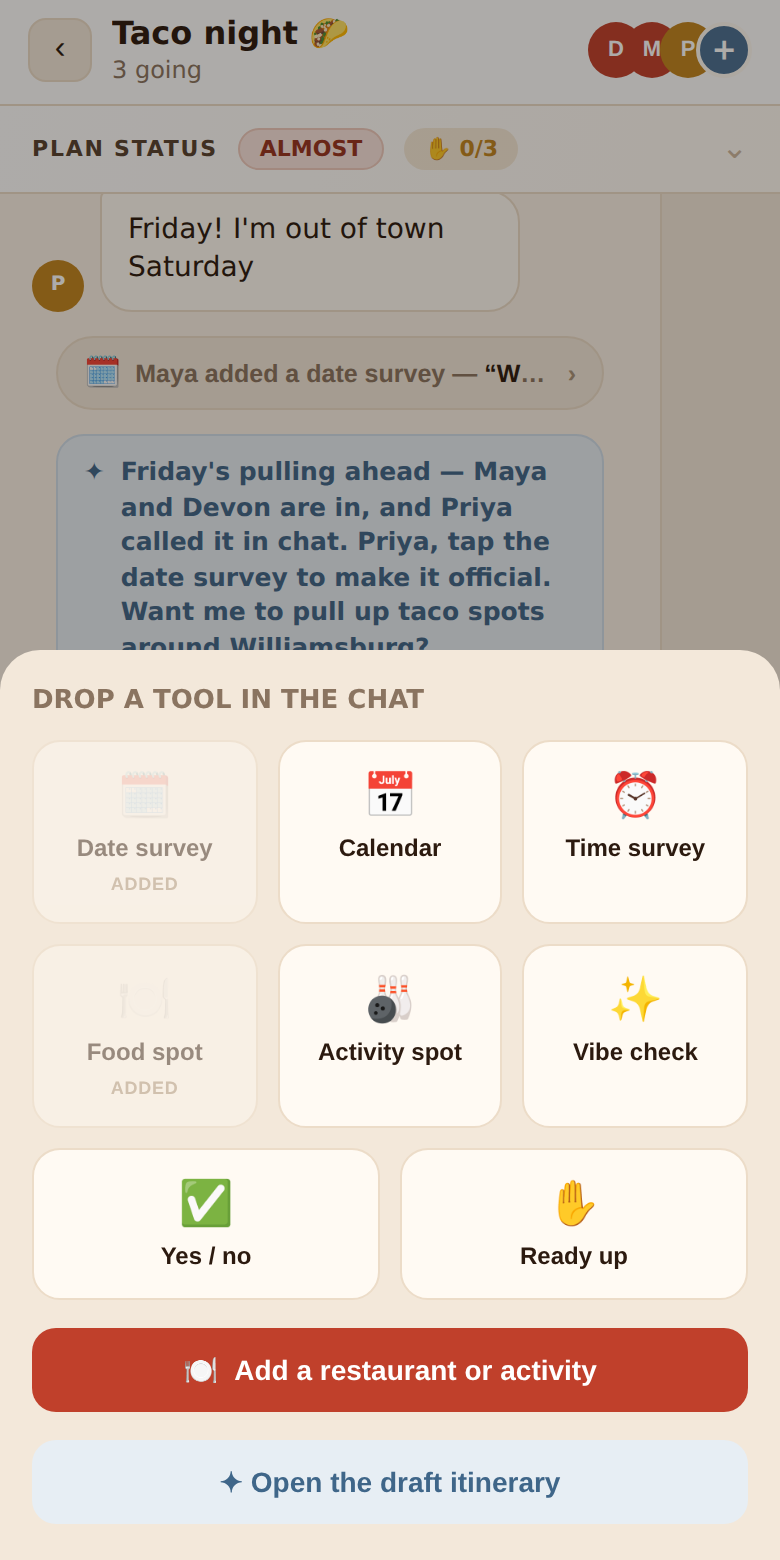
- Phone: tap the + button in the composer. A sheet titled Drop a tool in the chat opens with a grid of tiles.
- Tablet / desktop: tap + Add a widget at the top of the widgets column, or the round + on the rail.
| Widget | Asks | Starts with |
|---|---|---|
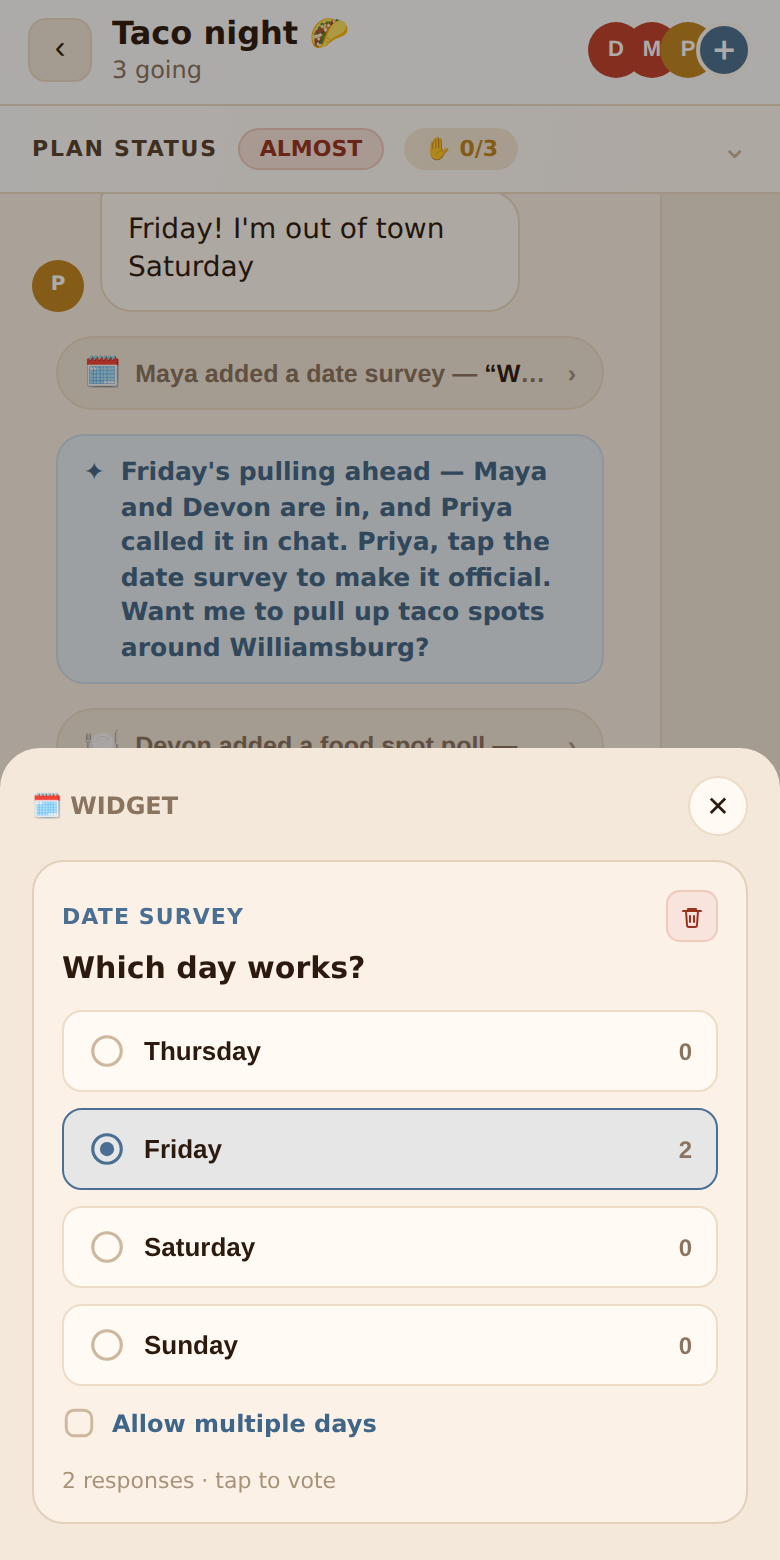
| 🗓️ Date survey | Which day works? | Thursday, Friday, Saturday, Sunday |
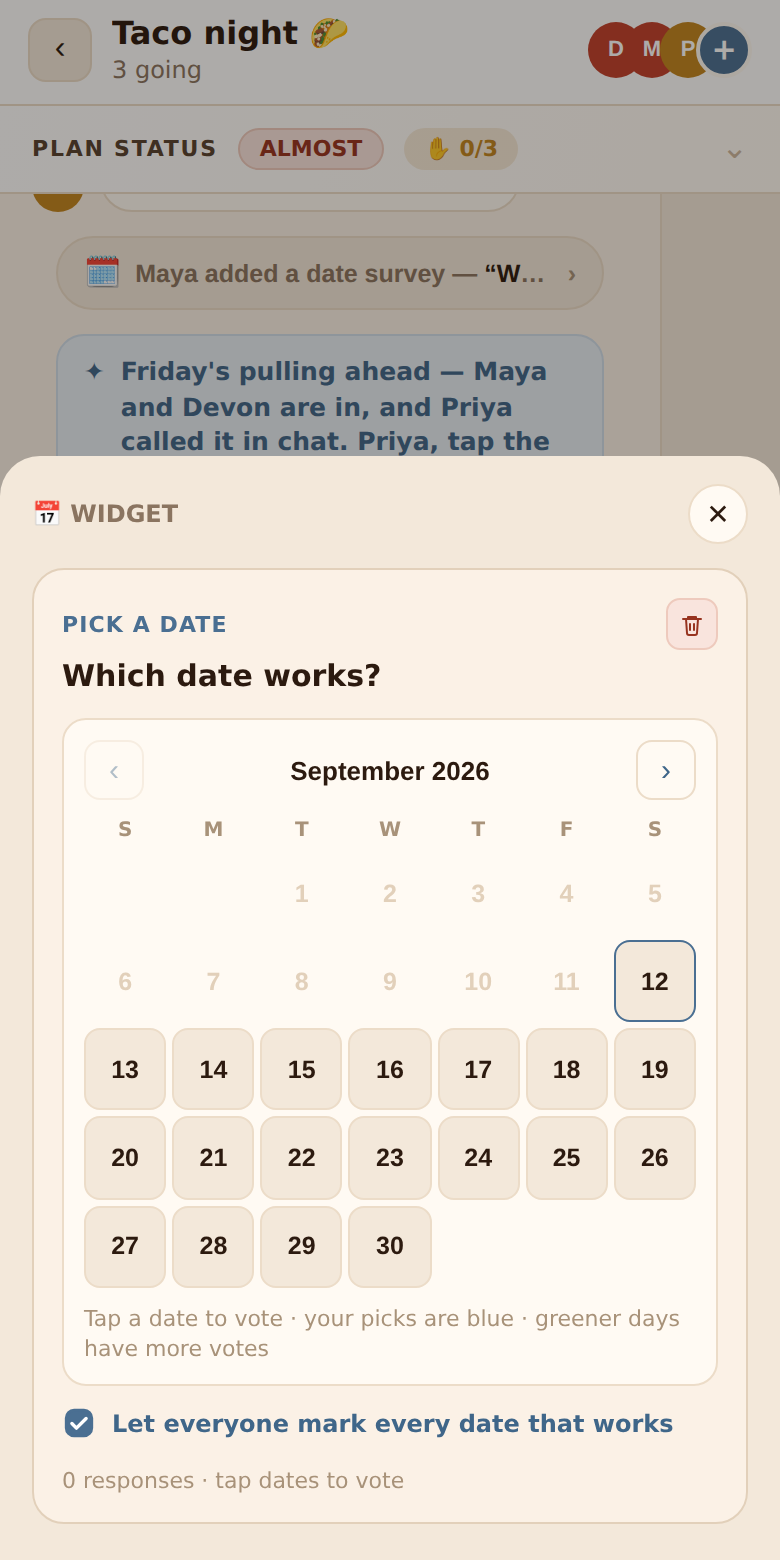
| 📅 Calendar (shows as Pick a date) | Which date works? | An empty month grid; multi-select on |
| ⏰ Time survey | What time works? | Morning, Afternoon, Evening, Late night — plus any specific times people have already mentioned in the chat |
| 🍽️ Food spot | Where should we eat? | Empty — add places by searching |
| 🎳 Activity spot | Where should we go? | Empty — add places by searching |
| ✨ Vibe check | What's the vibe? | Chill, Active, Nightlife, Outdoors |
| ✅ Yes / no | Quick questions | Opens a composer so you can write the questions first |
| ✋ Ready up | Everyone ready to lock it in? | — |
Anyone can add widgets, not just the organizer.
One of each decision widget per chat
Date survey, Calendar, Time survey, Food spot, Activity spot and Ready up can each exist only once in a chat, so the crew's answers never get split across duplicates. Once one is added, its tile is greyed out and marked ADDED. Vibe checks and yes/no widgets can be added as many times as you like.
The sheet also has two shortcuts: 🍽️ Add a restaurant or activity (phones) jumps straight to the map with the search box focused, and organizers get ✦ Open the draft itinerary.
Where widgets live
- In the thread — a slim pill marks where each widget was added. Tap it to open the widget.
- On the rail — a round button per widget with a progress ring (see The chat). Tap to open it in a sheet.
- In the widgets column (wide screens) — every widget open and live, in order. Finished widgets collapse themselves so the outstanding ones stay in view; tap a header to expand or collapse it. The column header shows the count, e.g. Widgets · 4.
Voting
Tap an option to vote. Your tap shows instantly and syncs in the background; if it can't be saved you'll see a notice and the card snaps back.
Each option row shows:
- A radio (single choice) or checkbox (multiple choice) on the left.
- The label, with a hint below it (a time band, a venue's address).
- The vote count on the right, and a fill bar across the row showing that option's share — your picks fill blue, everyone else's grey.
- An ✕ on options you added, so you can take them back. You can't remove options other people added or the ones the widget started with.
The footer reads 3 responses · tap to vote and becomes Everyone voted — you can still change yours once the whole crew has answered. Changing your vote later is always allowed.
Single vs. multiple choice. Widgets start single-choice. The person who added a date survey sees Allow multiple days; on a calendar it's Let everyone mark every date that works. Switching modes keeps everyone's existing answers.
Removed options. If an option you voted for is removed, your vote simply stops counting — nothing else changes.
The date survey
Four weekdays to start with. Vote for the one that works, or several if the widget's creator turned on Allow multiple days.
The calendar
The month grid is the ballot:
- Tap any upcoming day to vote for it; tap your own pick again to clear it. Past days are greyed out and you can't page back before the current month.
- Days shade by popularity: a lone vote is a faint tint, the front-runner fills solid. Your picks are blue; everyone else's are green. A small badge on each voted day shows its count.
- With multi-select (the default), mark every date that works — it's an availability grid.
The caption under the grid sums it up: Tap a date to vote · your picks are blue · greener days have more votes.
The time survey
Starts with four bands — Morning (before noon), Afternoon (12–5pm), Evening (5–9pm), Late night (after 9pm). Below them, + Add time lets you add a specific clock time from a time picker; 19:30 becomes an option labelled 7:30 PM.
Nova helps here: any specific time someone has mentioned in the chat ("let's do 7", "half six", "around 8pm") is collected and added to the time survey as an option automatically. Vague words like "evening" are left alone.
Vibe check
A plain poll — Chill, Active, Nightlife, Outdoors — that tells Nova what kind of night the crew wants. The winning vibe shows on the itinerary.
Yes / no questions
Choosing Yes / no opens a composer first:
- A title (defaults to Quick questions).
- One or more questions, up to 8. + Add question adds a row; ✕ removes one (you can't remove the last).
- Post to chat.
In the chat, each question gets its own Yes and No buttons with running counts. Your choice is highlighted — green for yes, pink for no. You count as "responded" once you've answered every question in the widget.
The person who posted the widget can ✎ Edit it later: rewording a question keeps its answers, removing a question drops them, new questions start empty.
Ask Nova to make one
"Nova, ask everyone yes/no: split the bill evenly?" — Nova can create yes/no widgets and polls for you. See Nova.
Ready up
The Ready up widget shows 3/5 ready to lock it in and who's still outstanding, with a single ✋ Ready up button (→ ✓ You're in — tap to undo). It's the same plan-level sign-off as the Ready up button in the plan status banner and on the itinerary — readying up anywhere updates everywhere. When all members are in, it reads Everyone's in 🎉 and the tally in the banner turns green.
Deleting a widget
You can delete widgets you added; the organizer can delete any. Tap the trash icon and confirm with Yes. Deleting removes the widget and its votes for everyone.
How widgets feed the plan
Nova reads every widget's tallies on each pass. A clear winner in a date, time or venue widget is treated as the decision; yes/no answers shape the details (if most people said no to a late night, the plan stays early). When a widget reaches full participation, Nova updates the plan within seconds — without announcing it in the chat.