
Appearance
Start a hangout
You start a hangout, you're its organizer. That means you invite the crew, you can tidy the member list, and you're the one who eventually locks the plan.
1. Name it
From the home screen tap + Start a new hangout. There's one field — What are we doing? — with a hint like Saturday bowling night. Type a title (up to 80 characters) and tap Start the hangout →.
Pick a title that says what the hangout is for
Nova treats the title as the crew's stated purpose. "Friday dinner" tells it to focus on a venue and a time; "Weekend camping trip" tells it to focus on dates and activities. A clear title gets you a better draft plan.
2. Invite the crew
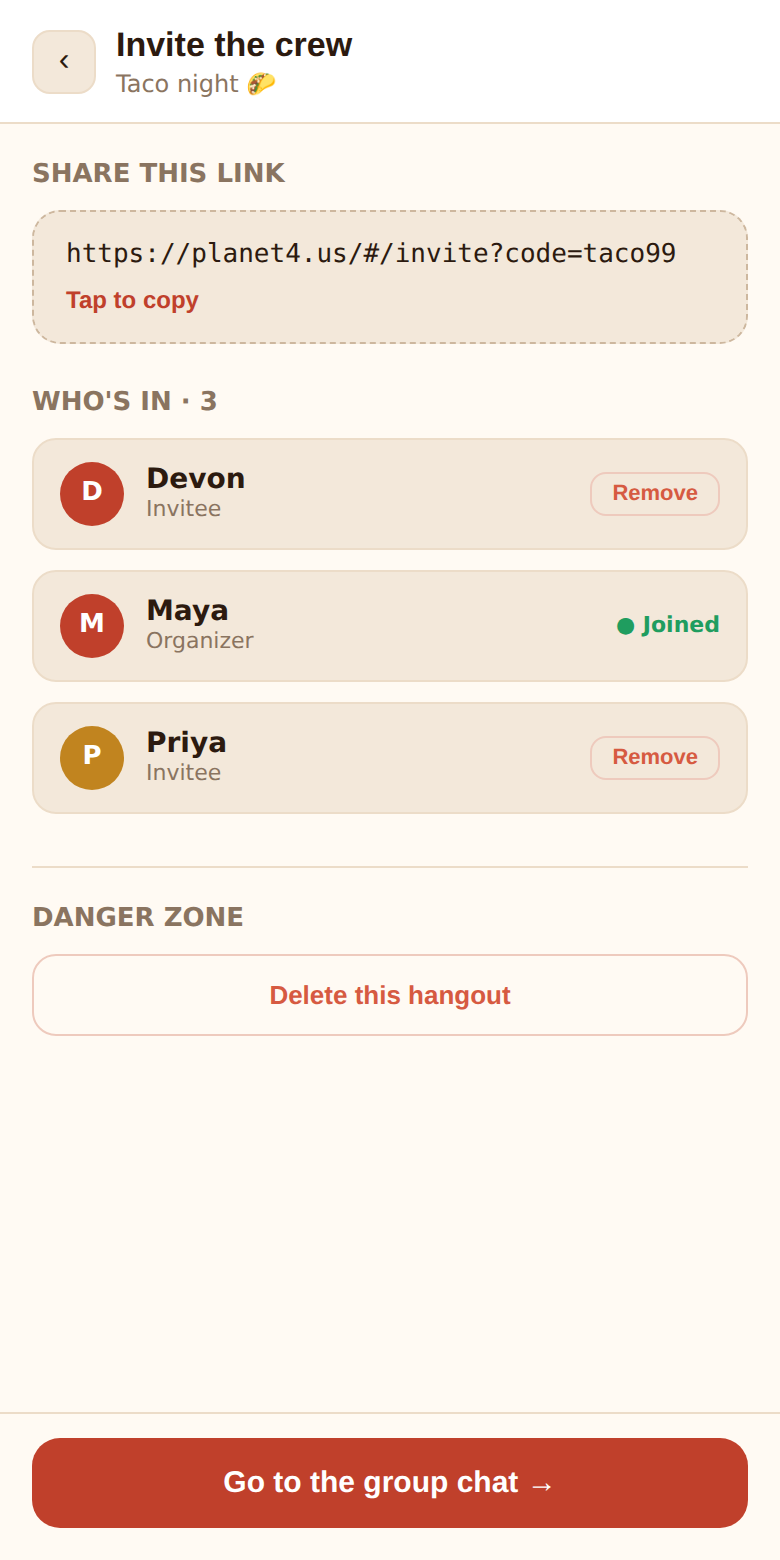
You land on Invite the crew. There are two ways to bring people in, and you can use both.
Share the link
The dashed card at the top holds your invite link, something like https://planet4.us/#/invite?code=k7m2pq. Tap the card to copy it — the caption flips to ✓ Copied to clipboard. Paste it into whatever your group already uses: iMessage, WhatsApp, Slack, email.
Anyone with the link can join, whether or not they've used Planet4 before. First-timers just pick a name on the way in. The link keeps working for the life of the hangout, so latecomers can join any time, and someone who leaves can come back with it.
When a Planet4 invite link is pasted into a Planet4 chat, it unfurls into a card with the hangout's title and an Open invite → button.
Invite friends directly
If you've added friends in Planet4 (see Friends), an Invite friends list appears under the link with an Invite button beside each friend who isn't in the crew yet. They get an entry in the For you section of their home screen and a push notification — no link to paste. The button changes to ✉ Invited once sent.
Any member can invite their own friends this way, not just the organizer.
Who's in
The Who's in list shows everyone in the hangout with their role — Organizer or Invitee — and whether they've ● Joined or are still Invited. Tap the avatar cluster at the top of the chat to come back to this screen any time.
3. Go to the chat
Tap Go to the group chat →. Your first move as organizer is usually to drop a widget so people have something to answer — a Date survey or Calendar is the classic opener. See Widgets.
Organizer tools during planning
Things only the organizer can do:
- Remove a member. On the invite screen, tap Remove next to a name and confirm with Yes. Removal is final: that person can't rejoin with the invite link, and their votes are dropped from every widget so tallies stay honest. Everyone sees a small 👋 (name) was removed line in the chat.
- Update the plan now. The ↻ Update plan button (in the chat's plan status banner and on the itinerary) makes Nova re-read the chat immediately instead of waiting for its next automatic pass.
- Manage the to-do list on the itinerary — add, tick and remove items.
- Delete any widget. Other members can only delete widgets they posted themselves.
- Lock the plan in. See The plan and locking it in.
Deleting a hangout
Two places:
- Invite screen → Danger zone → Delete this hangout, then Delete for everyone.
- Home screen: swipe the hangout's row to the left, tap Delete, then confirm.
Deleting removes the chat, the widgets and the plan for everyone and can't be undone. If you just want it off your own list, you can't leave a hangout you organize — deleting is the organizer's way out.
Hangouts that go quiet are also cleaned up automatically after a while; see Privacy.